
YouTube Kids offers children a simpler and more restricted viewing experience than the regular YouTube platform. It includes age-based content settings, search controls, blocking, reporting, viewing timers and an option that allows parents to approve content themselves.
However, the word “Kids” does not mean that every video is personally checked by a human or guaranteed to suit every child.
So, is YouTube Kids safe?
YouTube Kids can be safer than unrestricted access to regular YouTube, particularly when parents create a child profile and activate appropriate controls. The safest setting for a young child is usually Approve Content Yourself, which limits viewing to videos, channels and collections selected by a parent.
If parents use one of the broader age-based settings, unsuitable or low-quality content may occasionally pass through automated systems. Parents should therefore review recommendations, disable search for younger children, block unwanted videos and watch alongside them regularly.
This guide explains how YouTube Kids works, its main benefits and risks, and the settings parents can use to create a safer viewing experience.
What Is YouTube Kids?
YouTube Kids is a separate application and website designed to provide a simpler video-viewing experience for children aged 12 and under.
It includes content such as:
- Cartoons
- Songs
- Stories
- Educational videos
- Arts and crafts
- Science activities
- Children’s programmes
- Family-friendly entertainment
- Age-appropriate creator content
Parents can create separate profiles for children in the same household. Each profile can have its own content setting, history and recommendations.
YouTube Kids is different from the regular YouTube application. It provides more parental controls and aims to exclude videos unsuitable for children. Nevertheless, many of its videos are selected using automated systems, and Google acknowledges that no automated system is perfect. YouTube Kids Parent Information
What Age Is YouTube Kids For?
YouTube describes YouTube Kids as an experience for children 12 years old and under.
Parents can choose among three age-based content settings:
| YouTube Kids setting | Intended age range |
|---|---|
| Preschool | Ages 4 and under |
| Younger | Ages 5–8 |
| Older | Ages 9–12 |
A fourth option, Approve Content Yourself, allows parents to select the videos, channels and collections their child can access.
Age categories are only starting points. A child’s maturity, sensitivity, interests and development should also influence the setting.
A video that is acceptable for one eight-year-old may frighten, confuse or overstimulate another child of the same age.
How Does YouTube Kids Select Videos?
YouTube Kids does not manually review every available video.
Google explains that automated systems select content from the broader collection of videos uploaded to YouTube. Some human review also contributes to parts of the platform, but the scale is too large for every video to be checked individually before a child can find it.
Videos may appear through:
- The home screen
- Search results
- Recommendations
- “Watch It Again”
- Approved channels and collections
- Content selected directly by parents
This means a video can comply with general platform rules but still be unsuitable for your child.
Parents should not assume that a video is educational, accurate or appropriate simply because it appears inside YouTube Kids.
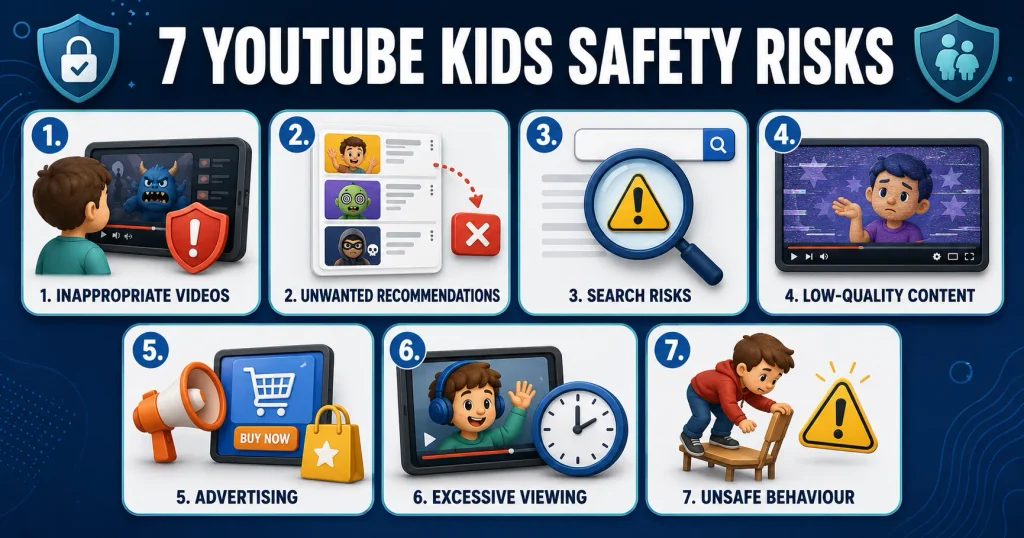
What Are the Main Risks of YouTube Kids?
YouTube Kids reduces some risks associated with regular YouTube, but it does not remove all of them.
1. Inappropriate Videos May Occasionally Appear
Automated filtering may incorrectly include a video containing:
- Frightening images
- Violence
- Mature themes
- Crude humour
- Misleading titles or thumbnails
- Unsafe behaviour
- Disturbing versions of familiar characters
- Language a parent considers inappropriate
- Content unsuitable for a sensitive child
Google states that it works to exclude unsuitable material but cannot manually review every video. It advises parents to block and report inappropriate content. YouTube Kids Parent Information
The possibility of unsuitable content does not mean every child will encounter it. It means parental controls and occasional supervision remain necessary.
2. Recommendations Can Lead to Unwanted Content
YouTube Kids recommends videos based partly on previous viewing and search activity.
If a child repeatedly watches noisy, repetitive or low-quality videos, the recommendation system may suggest more of the same. One unusual video can also influence what appears next.
Parents can manage this by:
- Reviewing viewing history
- Clearing history
- Pausing watch and search history
- Blocking unwanted videos and channels
- Turning off search
- Selecting Approved Content Only
When history is paused, new searches and watched videos should no longer influence future recommendations. When history is cleared, existing recommendations can be reset.
3. Search Expands What Children Can Find
When search is enabled, children can look through millions of videos selected for YouTube Kids by automated systems.
Google clearly states that videos available through search are not necessarily reviewed by humans. Although its systems aim to return age-appropriate results, a child may still find something a parent does not want them to watch.
Turning search off reduces the available collection. According to Google, a child with search disabled can access channels verified by YouTube Kids, but unwanted content can still occasionally appear.
For the strongest restriction, parents should use Approve Content Yourself, not merely disable search.
4. Some Videos May Be Low Quality
A video does not have to contain explicit or prohibited material to be poor quality.
Some children’s content may include:
- Repetitive actions
- Confusing stories
- Excessive noise
- Rapid visual changes
- Little educational value
- Misleading claims
- Pressure to buy products
- Behaviour parents do not want children to copy
- Mass-produced or AI-generated material with limited value
Parents should consider whether content helps the child learn, create, laugh or relax in an age-appropriate way—or merely keeps the child watching.
The quality and effect of the content are as important as the amount of time spent watching.
5. Children May See Advertising
The free version of YouTube Kids includes limited paid advertising.
Google says paid advertisements are reviewed for compliance with its YouTube Kids advertising policies. They are marked as advertisements and introduced with a short message to help children recognize that an ad is beginning.
However, user-uploaded videos about toys, products or companies may not be classified as paid advertisements. Such videos may therefore not carry the same advertisement label or be subject to the YouTube Kids paid-ad policies.
This distinction can be difficult for young children to understand.
Parents should teach children:
- Videos can encourage people to want products
- A creator may receive products or money
- Popularity does not mean a product is necessary
- Product demonstrations may not show the complete experience
- They should ask before buying or downloading anything
Google says YouTube Kids removes content when creators declare certain paid product placements and prohibits overly commercial content. Ads in YouTube Kids
YouTube Premium can remove paid advertisements, but it does not automatically remove all user-created videos that feature products or brands.
6. Excessive or Passive Viewing
YouTube Kids makes it easy to continue watching one video after another.
A child may have difficulty stopping because:
- The next video appears immediately
- Recommendations provide endless choices
- Familiar characters repeatedly appear
- Short videos create frequent rewards
- The child uses videos whenever bored or upset
Parents should monitor whether viewing interferes with:
- Sleep
- Physical activity
- Books and storytelling
- Family interaction
- Creative play
- Meals
- Schoolwork
- Other interests
YouTube Kids includes a built-in timer, but parents should also use clear routines and provide warnings before viewing ends.
7. Children May Copy Unsafe Behaviour
Children often imitate what they watch.
Even a video that appears playful may demonstrate:
- Dangerous challenges
- Rough physical behaviour
- Unsafe use of household objects
- Wasteful activities
- Unkind jokes
- Risky food experiments
- Inappropriate language
Young children may not distinguish between carefully edited entertainment and behaviour that is safe to repeat.
Parents can ask:
- Was that safe?
- Do you think an adult helped make the video?
- What could happen if someone copied it?
- Was the character being kind?
- Was this real, pretend or edited?
These conversations build media literacy.
YouTube Kids vs Regular YouTube
YouTube Kids is generally a more appropriate starting point for younger children than unrestricted regular YouTube.
| Feature | YouTube Kids | Regular YouTube |
| Intended audience | Children aged 12 and under | General audience |
| Age-based content settings | Yes | Not in the same format |
| Approve Content Yourself | Yes | No equivalent full curation mode |
| Built-in viewing timer | Yes | Device controls may be needed |
| Search can be disabled | Yes | Not as a YouTube Kids parent setting |
| Parent-selected profiles | Yes | Different account system |
| Content guaranteed safe | No | No |
| Advertising | Limited paid ads may appear | Wider advertising environment |
Older children may eventually move to a supervised YouTube experience managed through a Google family account. The appropriate time depends on age, maturity and the content they need.
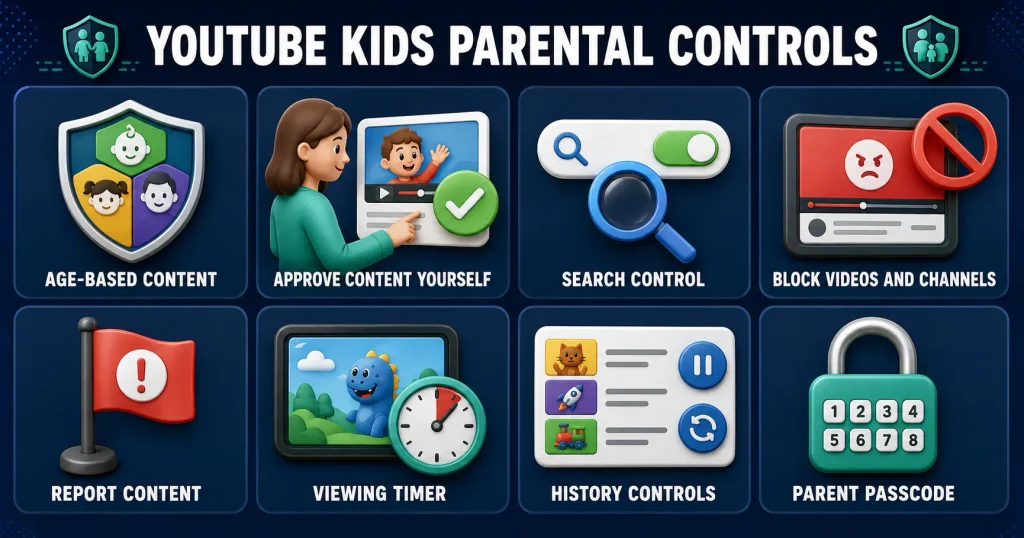
What Parental Controls Does YouTube Kids Offer?
YouTube Kids includes several useful controls, but parents must activate and review them.
Age-Based Content Settings
Parents can choose:
Preschool: Ages 4 and under
This setting aims to include videos that encourage creativity, learning, exploration and play for very young children.
Children at this age still benefit from close adult involvement. The setting does not mean every video will suit every preschooler.
Younger: Ages 5–8
This option provides a wider range of songs, cartoons, crafts, gaming and educational material.
As the available content expands, parents should review viewing history and recommendations regularly.
Older: Ages 9–12
The Older setting includes a broader range of music, gaming, science and other content intended for preteens.
Broader access may bring more material that a particular family or child considers unsuitable. Parents should not choose this setting only because the child wants more videos.
Approve Content Yourself
This is the most restrictive YouTube Kids setting.
Parents select the individual videos, channels or collections their child can watch. Search is unavailable in this mode, and recommendations are drawn only from approved content.
This option is especially helpful for:
- Preschool children
- Children who are sensitive to frightening content
- Parents who want a small, carefully selected library
- Families introducing video content for the first time
- Children who repeatedly reach unsuitable recommendations
The trade-off is that parents must spend time choosing and updating the approved library.
Search Control
Parents can turn search on or off.
Turning search off reduces what the child can discover independently. However, Google warns that unwanted content may still occasionally appear.
For complete parent selection, use Approve Content Yourself instead.
Blocking Videos and Channels
Parents can block an individual video or an entire channel.
Blocking a single video may not block other uploads from the same creator. If the entire channel is unsuitable, block the channel rather than only one video.
Blocking is linked to the parent account and child profile, so make sure the correct profile is selected.
Reporting Content
Parents can report videos that appear to violate YouTube Kids or YouTube policies.
Reporting asks the platform to review the content. Blocking and reporting serve different purposes:
- Blocking prevents your child’s profile from seeing that content.
- Reporting alerts YouTube to a possible policy violation.
Use both when appropriate.
Viewing Timer
The built-in timer lets parents decide how long a viewing session can last. When the time expires, the application stops the session.
The timer can reduce arguments because the end is predictable, but parents should still give the child a warning before time runs out.
History Controls
Parents can:
- View recent activity
- Clear watch and search history
- Pause history
- Reset recommendations
- Review “Watch It Again” content
These controls help parents understand what the child watches and prevent a few videos from continuing to shape recommendations.
Parent Passcode
Parents can create a custom passcode to protect settings.
The default parent-access method may involve answering a simple multiplication question. An older child may be able to solve it, so a private custom passcode offers better protection.
Do not use an easily guessed code such as the child’s birthday.
How to Make YouTube Kids Safer
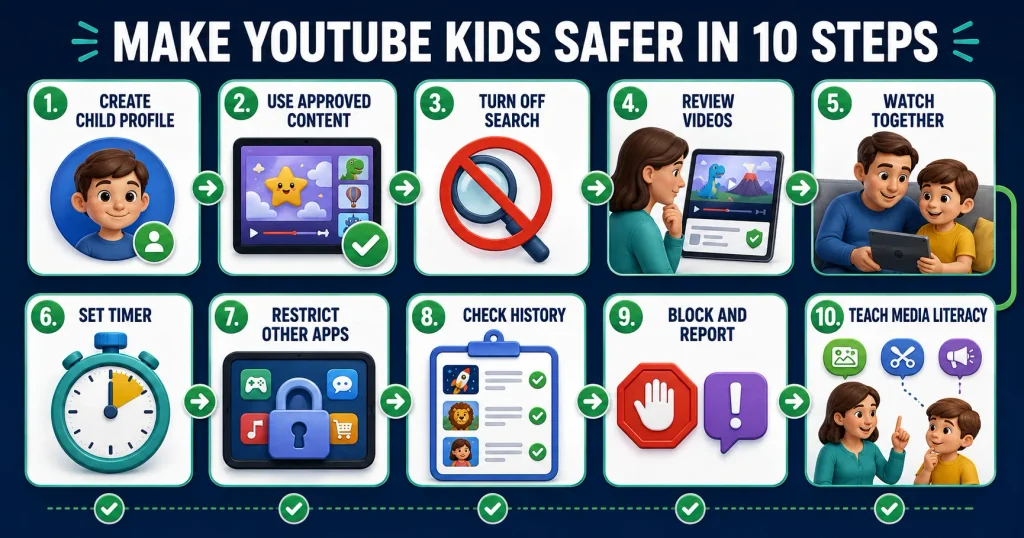
Use the following steps before allowing a young child to watch independently.
1. Create a Separate Child Profile
Create one profile for each child rather than allowing siblings of different ages to share.
Separate profiles help ensure that:
- Each child receives suitable settings
- Viewing history is not mixed
- Recommendations reflect the correct child
- Older siblings’ content does not enter a younger child’s feed
Enter the child’s correct age and choose the most cautious reasonable content setting.
2. Use Approved Content Only for Young Children
For preschool children, Approve Content Yourself provides parents with the greatest control.
Begin with a small collection of trusted videos and channels. Add content gradually after reviewing it.
Do not approve an entire channel based on one good video. Look through recent uploads, thumbnails, titles and the general style of the channel first.
3. Turn Off Search
If you are not using Approved Content Only, consider disabling search for younger children.
This reduces the chance that a child will reach questionable material through unusual spellings, voice searches or recommendations connected to a popular character.
4. Review Videos Before Approving Them
Watch the complete video when possible.
A suitable beginning does not guarantee that the entire video remains appropriate. Some videos contain unexpected scenes, product promotion or abrupt changes later.
Check:
- Language
- Visual intensity
- Frightening scenes
- Product promotion
- Unsafe behaviour
- Accuracy
- Pace
- Length
- Values and behaviour
- Whether it encourages further healthy play
5. Watch Together Regularly
Co-viewing means watching and talking with the child.
You do not need to watch every minute forever, but regular shared viewing helps you understand what the child likes and how the content affects them.
Ask simple questions:
- What happened in the story?
- Was that character kind?
- Is this real or pretend?
- What did you learn?
- Would that be safe to copy?
- Is the video trying to sell something?
6. Set a Viewing Timer
Choose a limit that fits the child’s age and routine.
Tell the child before viewing begins:
“You can watch for 30 minutes. When the timer ends, we will put the tablet away.”
Give a five-minute warning and have an offline activity ready for the transition.
For very young children, shorter planned sessions may be easier than one long viewing period.
7. Disable Unnecessary Device Access
YouTube Kids controls apply inside the application. A child may still leave the app and open regular YouTube, a browser or another video service if the device allows it.
Use device-level controls to:
- Block or restrict regular YouTube
- Prevent new application downloads
- Restrict browsers
- Require purchase approval
- Set application limits
- Protect settings with a parent password
Google Family Link can manage applications and screen time on supported Android devices and Chromebooks, although features differ by device and operating system. Google Family Link
On Apple devices, parents may also use the device’s Screen Time and content-restriction settings.
8. Check Viewing History
Review history regularly without presenting every check as punishment.
Look for:
- Videos the child watches repeatedly
- Sudden changes in interests
- Frightening or confusing content
- Very long viewing sessions
- Commercial channels
- Low-quality repetitive videos
Ask your child about unfamiliar content before assuming something harmful occurred.
9. Block and Report Unsuitable Content
If you find an inappropriate video:
- Stop the video.
- Reassure the child if they are upset.
- Block the video or channel.
- Report it if it appears to violate platform rules.
- Review related recommendations.
- Clear or pause history when necessary.
- Adjust the content setting or turn off search.
10. Teach Basic Media Literacy
Even young children can begin learning that:
- Videos are created by people
- Some videos are advertisements
- Edited videos may not show real life
- Popular videos are not always accurate
- Unsafe activities should not be copied
- They can tell a parent when something feels scary
Media literacy gradually prepares children for less restricted platforms later.
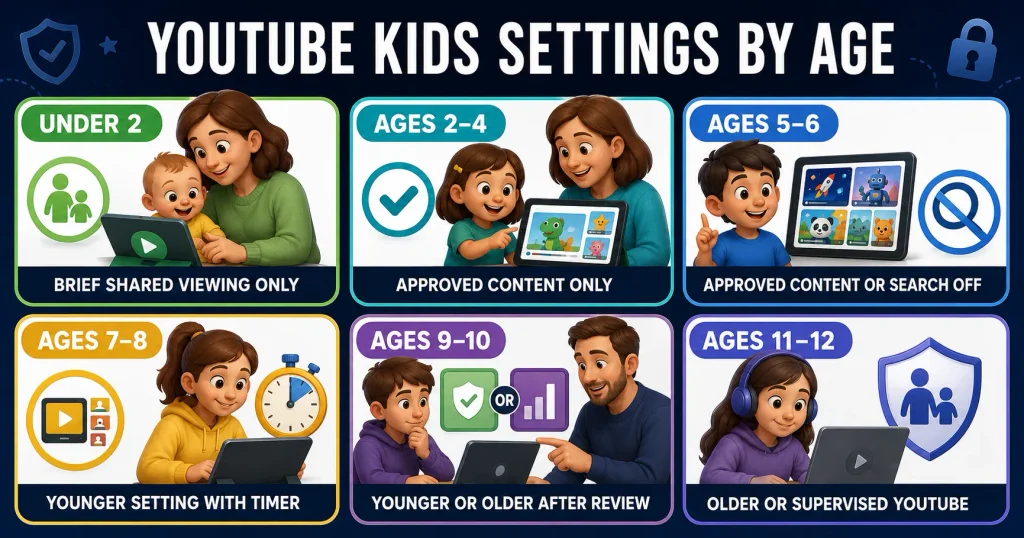
Recommended Settings by Age
The following suggestions are cautious starting points, not official medical recommendations.
| Child’s age | Suggested YouTube Kids setup |
| Under 2 | Avoid routine passive viewing; use brief, shared video calls or carefully selected content only when needed |
| 2–4 | Approve Content Yourself; short supervised sessions; custom parent passcode |
| 5–6 | Approved content or Preschool/Younger setting with search off; regular co-viewing |
| 7–8 | Younger setting; search based on maturity; history review and viewing timer |
| 9–10 | Younger or Older setting after review; ongoing discussion about ads and misinformation |
| 11–12 | Older setting or supervised YouTube depending on maturity; clear content and time rules |
A child with sensory sensitivities, anxiety or developmental differences may need more carefully selected content regardless of age.
Is YouTube Kids Safe for Toddlers?
YouTube Kids can provide a more controlled environment than regular YouTube, but toddlers should not browse it independently.
For toddlers:
- Select content yourself
- Watch together
- Keep sessions short
- Avoid autoplay-style continuous viewing
- Choose slow, simple content
- Protect sleep, play and face-to-face interaction
- Do not use videos as the response to every difficult emotion
The World Health Organization does not recommend sedentary screen time for one-year-olds. For children aged two to four, it recommends no more than one hour per day, with less being better. World Health Organization
This is a maximum, not a target that every child needs to reach.
Is YouTube Kids Safe for Preschoolers?
It can be reasonably safe when parents use Approved Content Only or the Preschool setting, disable search and review viewing history.
Preschoolers may not understand the difference between entertainment, advertising and reality. Co-viewing remains important.
Parents should choose videos that encourage language, imagination, music, movement or activities away from the screen.
Is YouTube Kids Safe for 8-Year-Olds?
Many eight-year-olds can use the Younger setting with appropriate boundaries. Parents should still monitor recommendations, search activity and viewing time.
At this age, children can begin discussing:
- Why creators make videos
- How advertisements influence viewers
- Why some thumbnails exaggerate
- How edited content differs from real life
- Why popularity does not prove accuracy
Is YouTube Kids Safe for 10- to 12-Year-Olds?
The Older setting offers broader content for children aged 9–12, but it may include material that individual families consider unsuitable.
Some preteens may feel that YouTube Kids is too young for them and ask to use regular YouTube. Parents should not make the switch based only on social pressure.
Before moving to a supervised YouTube experience, consider whether the child can:
- Follow content rules
- Recognize advertisements
- Avoid unsuitable searches
- Report upsetting content
- Question misleading information
- Stop watching at an agreed time
- Protect personal information
Does YouTube Kids Have Comments?
YouTube Kids does not provide children with the same public commenting environment found on regular YouTube. This removes an important route through which children could otherwise encounter harassment, spam or direct interaction with unknown users.
However, removing comments does not guarantee that all video content is suitable.
Does YouTube Kids Show Ads?
Yes. The free version may display limited paid advertisements.
Google states that these ads are reviewed, marked as ads and do not include direct links to external websites or product-purchase flows.
However, user-created videos featuring brands or products may not be labelled as paid ads if they are not part of the YouTube Kids advertising programme.
Parents should teach children to recognize both traditional advertisements and promotional content.
Is YouTube Premium Safer for Children?
YouTube Premium can remove paid advertisements from YouTube Kids, but it does not replace content settings, supervision or blocking.
A Premium subscription does not guarantee that every available video is appropriate. Parents should still:
- Select the correct profile
- Choose an age setting
- Turn off search when appropriate
- Review recommendations
- Block unwanted content
- Limit viewing time
YouTube Kids Safety Checklist
Before handing a child the device, check:
- Is the child using the correct profile?
- Is the birth age correct?
- Is the content level appropriate?
- Would Approved Content Only be safer?
- Is search turned off for a young child?
- Is a custom parent passcode active?
- Is the viewing timer set?
- Is regular YouTube blocked or restricted?
- Have I reviewed recent history?
- Does the child know to stop and tell me about upsetting content?
- Is viewing replacing sleep, movement or family time?
Warning Signs That Viewing Needs Attention
Parents may need to change the routine when a child:
- Frequently encounters frightening material
- Watches secretly
- Regularly bypasses controls
- Cannot stop without severe continuing distress
- Loses sleep because of videos
- Copies dangerous behaviour
- Loses interest in most offline play
- Becomes highly focused on products shown in videos
- Repeatedly watches confusing or disturbing content
- Uses another application to avoid YouTube Kids restrictions
One sign does not automatically indicate an addiction or medical condition. Look at the continuing pattern and its effect on daily life.
Seek advice from a qualified child-health professional if digital media is seriously affecting sleep, behaviour, learning or family functioning.
What Should Parents Do If a Child Sees a Disturbing Video?
Respond calmly.
- Stop the video.
- Ask what the child saw.
- Reassure the child that they are safe.
- Explain whether the content was real, pretend or misleading.
- Block the video or channel.
- Report it when appropriate.
- Review recommendations and history.
- Strengthen the content settings.
Avoid blaming the child, especially if the video appeared through recommendations. A child who fears punishment may hide future experiences.
If the content involved a real threat, exploitation or illegal material, avoid redistributing it and report it through the appropriate platform and local authorities.
Benefits of YouTube Kids
When configured thoughtfully, YouTube Kids may provide:
- Educational explanations
- Songs and language activities
- Stories
- Creative ideas
- Movement videos
- Science demonstrations
- Access to diverse cultures and interests
- Entertainment selected for children
- A more restricted alternative to regular YouTube
A balanced review should recognize these benefits while remaining realistic about platform limitations.
Final Verdict: Is YouTube Kids Safe?
YouTube Kids is generally safer for young children than unrestricted regular YouTube, but it is not completely risk-free.
Its age-based settings, search controls, blocking, reporting, history management and viewing timer give parents useful tools. The Approve Content Yourself option provides the strongest control because the child can access only material chosen by the parent.
However, parents should remember:
- Not every video is manually reviewed
- Automated filters can make mistakes
- Recommendations may lead to low-quality content
- The free service contains limited advertising
- Promotional user videos may not appear as formal ads
- Excessive viewing can replace sleep, movement and play
- Device-level controls may be needed to prevent access to regular YouTube
The safest approach combines careful settings with regular adult involvement.
YouTube Kids should be treated as a tool—not an automatic babysitter or a guarantee that every available video is suitable. When parents choose content, watch together occasionally and keep communication open, children can enjoy the platform with fewer avoidable risks.
Frequently Asked Questions
Is YouTube Kids completely safe?
No digital video platform can guarantee that every piece of content will suit every child. YouTube Kids offers stronger restrictions than regular YouTube, but unsuitable material can occasionally pass through its systems.
What age is YouTube Kids for?
YouTube Kids is designed for children aged 12 and under. Its settings include Preschool for ages four and under, Younger for ages five to eight, and Older for ages nine to twelve.
What is the safest YouTube Kids setting?
Approve Content Yourself is the most restrictive setting because parents select the videos, channels and collections the child can access. Search is unavailable in this mode.
Can inappropriate videos appear on YouTube Kids?
Yes, occasionally. Google uses automated systems and some human review, but it states that no automated system is perfect. Parents can block and report unsuitable videos.
Should I turn off search on YouTube Kids?
Turning off search is sensible for younger children because it reduces what they can discover. Approved Content Only offers stronger control than simply turning search off.
Does YouTube Kids have advertisements?
The free service may show limited paid advertisements reviewed under YouTube Kids policies. User-uploaded promotional videos may not be classified or labelled as paid advertisements.
Can parents see YouTube Kids history?
Parents can review and clear viewing and search history. They can also pause history so that new activity does not affect recommendations.
Can parents block a YouTube Kids channel?
Yes. Parents can block individual videos or entire channels. Block the complete channel if its overall content is unsuitable.
Does YouTube Kids have a time limit?
The application includes a timer that can end a viewing session after a period selected by the parent. Device-level controls can provide additional limits.
Is YouTube Kids better than regular YouTube?
For most young children, YouTube Kids provides a more restricted and manageable experience. It includes age settings and parent controls not available in the same form on unrestricted regular YouTube.
Is YouTube Premium the same as YouTube Kids?
No. YouTube Premium is a subscription service that can remove paid ads and offer other benefits. YouTube Kids is a child-focused application with age-based controls. Premium does not replace parental settings.
What should I do if my child watches something frightening?
Stop the video, listen calmly, reassure the child, block and report the content, and review the child’s profile settings and recommendations.
Editorial Note
YouTube Kids settings and policies may change. This article reflects official information available in August 2026. Parents should confirm current options through Google’s official YouTube Kids and Family Link help pages.
This article provides general online-safety information. It is not affiliated with, sponsored by or endorsed by Google or YouTube.
Sources
- Google: Important Information for YouTube Kids Parents
- Google: YouTube Kids Content Policies
- Google: YouTube Kids Parental Controls
- Google: Manage YouTube Kids Profile Settings
- Google: Advertising in YouTube Kids
- YouTube: Age-Appropriate Media for Children and Teenagers
- Google Family Link Parental Controls